Kakobuy Images & Prices: Site Spreadsheet vs Google Sheets
Kakobuy Images & Prices: Site Spreadsheet vs Google Sheets
Kakobuy Images & Prices: Site Spreadsheet vs Google Sheets
When you're viewing multiple Chinese product candidates at once, the real issue isn't simply "where to put the images"—it's how to make each candidate findable, comparable, and verifiable later. If images, prices, product IDs, original pages, and notes don't have fixed positions, it's easy to mix up different candidates.
This article focuses on one specific task: building a record sheet that lets you revisit candidates. After reading, you should be able to decide which information is best kept in the site's built-in spreadsheet and which is better copied into Google Sheets for further organization.
This article does not apply to scenarios that require real-time confirmation of stock, final shipping, taxes, or after-sales eligibility. A spreadsheet can only store the information you saw at the time of verification; it cannot replace re-confirming official pages and order terms before purchase. 📌
First, Define the Buying Questions Your Candidate Sheet Must Answer
Before building the sheet, write down what this table should help you do. Common questions include:
Which page does this candidate come from?
Can its image help me identify the style, color, or specification?
At what time and in which currency was the price recorded?
Are there duplicate pages or duplicate product IDs among candidates?
Which information has been verified, and which is still missing?
What's the next step: keep viewing, wait for more information, or stop comparing?
If these questions aren't answered, don't rush to add fields like color, brand, or keywords. More fields don't necessarily make decisions easier; a simple but traceable sheet is often more practical than one filled with descriptive text.
Consider each candidate as an independent record and keep at least the following identifying information:
Custom candidate ID, such as C-001, C-002.
Product page URL or a traceable original page identifier.
Product name or short title shown on the page.
Image preview or image URL.
Price shown on the page, currency, and recording date.
Current verification status, e.g., "pending review", "incomplete info", or "initial check done".
Notes, including missing specs, seller info, and items needing re-confirmation.
Don't equate "lowest price" with "lowest final cost". Besides the product price, there may be domestic shipping, international shipping, customs fees, exchange rate fluctuations, and other applicable charges. 💰
Image, Price, and Card Info in Kakobuy's Site Spreadsheet
The site spreadsheet is better for quickly discovering and browsing candidates. The screenshot from the prompt shows a card-style product catalog: each card displays the product image, title, product ID, price, and entry points to product details or related actions.
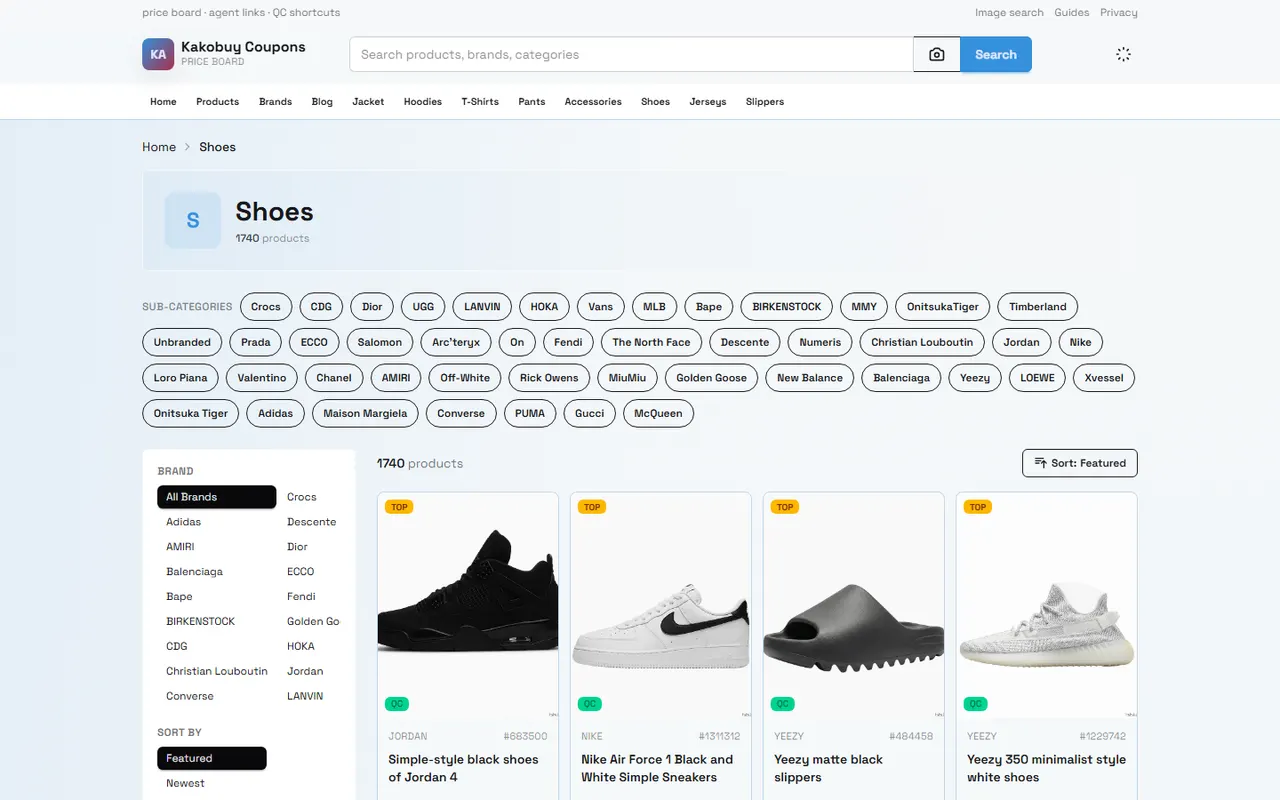
Image: Example of a candidate catalog card. It illustrates how image, title, ID, and price are presented side by side during discovery, and does not represent fields, buttons, or follow-up processes not shown in the screenshot.
In this type of site spreadsheet, the image's main role is to help you quickly identify the candidate, not to prove material, size, stock, or quality. The image preview is good for answering "which one am I looking at?", but not for answering "what condition will the received item be in?" on its own.
The price field should also be treated as a page record. When recording, it's best to note:
The amount shown on the page.
The currency shown on the page.
The date of recording.
Whether other fees explicitly shown on the page are included.
Whether there are spec differences or a price range.
If these conditions aren't stated in the visible information, leave the fields blank or mark them as "to confirm", and don't fill them with estimates. In particular, don't write the product page price as a total that includes international shipping.
The advantage of the site spreadsheet is fast discovery and centralized images and card info, making it suitable for initial screening of candidates. Its limitation is that you usually cannot assume every card provides complete purchase decision info, nor can you treat catalog images as warehouse inspection or physical evidence.
How to Design Image Links and Price Fields in Google Sheets
Google Sheets is better for turning candidates into a sortable, filterable, annotatable, and reviewable worksheet. It's recommended to use one row per candidate, not to stack multiple candidates in one cell.
A sufficient field order could be:
Field | Purpose | Recording principle |
|---|---|---|
Candidate ID | Distinguish each record | Manually generated and unique |
Product name | Easy to read and search | Record only the page-visible name, don't expand |
Image URL | Easy to open original or save reference | Keep full URL, avoid copying only filename |
Image preview | Quick candidate identification | For identification only, not proof of quality |
Page URL | Return to original info | One record corresponds to one main page |
Page price | Save the amount seen at that time | Record currency and date together |
Product ID | Align duplicate candidates | Fill only the ID explicitly shown on page |
Verification status | Manage review progress | Use fixed options, avoid synonyms mixing |
Notes | Save gaps and next steps | Write facts, doubts, actions; no unsupported conclusions |
If using Google Sheets' image preview, first confirm the image URL is stable, legally usable, and won't fail to load due to permissions or hotlink protection. If the image can't be previewed, keep the image URL and note "preview failed" in the remarks; don't substitute another image that doesn't match.
For price, it's recommended to split into at least two fields: one for the original page amount, and one for the currency. If conversion is needed, add "converted amount" and "conversion date", and note the exchange rate source or calculation method. Converted values are only for auxiliary comparison and should not override the original price.
Don't mix the following into the price cell:
Estimated international shipping.
Possible taxes.
Unconfirmed discounts.
Price ranges between different specs.
Personal subjective judgments like "great deal".
These should go into separate fields or notes to avoid mixing text and numbers when sorting. 🧾
How to Align Multiple Candidates by Product ID, Link, and Notes
When candidates increase, similar images, similar titles, or duplicate pages are common. The safest alignment order is: product page URL first, then explicitly shown product ID, then custom candidate ID as internal management identifier.
You can clean up in the following order:
First, generate a unique custom candidate ID for each candidate.
Check if page URLs are identical; mark identical records as suspected duplicates.
Check if product IDs shown on pages are the same, but don't conclude they are the same spec solely by ID.
Compare titles, images, specs, and seller info, and record remaining differences.
Keep unconfirmable records as "pending review"; don't force merge.
Write next steps in notes, e.g., "confirm color", "confirm spec", or "reopen page".
Images can help spot duplicates, but cannot complete deduplication alone. The same image may correspond to different specs or be reused across pages. Conversely, the same candidate may look different due to thumbnails, cropping, or loading status.
It's recommended not to delete suspected duplicate records. Add a "duplicate check result" field with fixed values like "unique", "suspected duplicate", "needs manual confirmation". This avoids duplicate comparisons while preserving traces for later review.
Operational Differences Between Image Preview and External Link Viewing in Sheets
Image preview is for quick browsing; external links are for returning to the source for verification. They serve different tasks:
Image preview answers "which image roughly corresponds to this record?".
Image URL helps you reload the image or check its source.
Page URL helps you revisit name, price, spec, and other visible info.
Notes store content that cannot be judged directly from the image.
If the image displays but the page URL doesn't open, don't mark the information corresponding to the image as verified. Conversely, if the page opens but the image fails to display, don't casually supplement with other images. In that case, keep the page record and write "image not loaded" or "no image saved" in the image field.
A screenshot also only proves what was visible at the time. It cannot prove the current page is still the same, nor that buttons, fields, or actions not shown in the screenshot definitely exist. Before publishing or making a purchase decision, re-check the applicable page and terms, and record a new verification date. 🔎
How to Preserve Uncertainty When Prices Change or Sources Are Incomplete
Prices and page statuses may change. To avoid mistaking old info for current facts, adopt a "raw value plus status" recording method instead of directly overwriting old values.
For example, keep:
Original page price.
Price recording date.
Latest re-checked price.
Latest re-check date.
Whether the price changed.
Whether the reason for change is known.
If the reason is unknown, just write "price changed, reason unconfirmed", don't guess it's a discount, spec, or seller adjustment. If the page only shows a price range, keep the range; don't arbitrarily pick the lowest value to represent the whole candidate.
When sources are incomplete, you can use the following statuses:
Info complete: name, image, page URL, and price all traceable.
Image missing: page traceable, but no usable image.
Price missing: page traceable, but no clear amount seen.
Page invalid: original page can't open, no reliable alternative found yet.
To confirm: doubts about spec, currency, or page status.
These statuses are not evaluations of product quality, but descriptions of record completeness. This prevents the sheet from turning "no evidence" into "no problem".
Boundaries Between the Two Tools in Discovery, Recording, and Review Phases
Site spreadsheet and Google Sheets can work together, but should not replace each other.
Site spreadsheet is better for:
Quickly browsing images and cards.
Discovering initial candidates.
Initial screening by visible page info.
Returning to candidate pages for further viewing.
Google Sheets is better for:
Unified fields and candidate IDs.
Filtering and sorting multiple candidates.
Recording price dates, currencies, and verification statuses.
Preserving suspected duplicates, missing info, and next actions.
Forming a reviewable candidate list.
Neither can do the following alone:
Confirm actual product quality.
Confirm ongoing stock availability.
Calculate final international shipping and taxes.
Replace platform warehouse inspection records.
Guarantee page content won't change in the future.
Therefore, the key to comparison isn't choosing "which one is absolutely better", but separating discovery, recording, and review. First use the site catalog to find candidates, then use Google Sheets to unify structure, and finally return to applicable pages and order terms for confirmation.
Next Step: Complete a Traceable Candidate Sheet
You can start with a minimal viable sheet with only candidate ID, product name, image URL, page URL, page price, currency, recording date, and verification status. After the first round, add spec, seller, or fee fields based on actual issues.
Before submitting, check each record:
Does each record have a unique candidate ID?
Is the image consistent with the corresponding page?
Does the page price include currency and recording date?
Is product price separated from international shipping?
Is the original page URL or traceable identifier kept?
Are suspected duplicate records explained, not deleted?
Is missing info clearly marked, not filled with guesses?
Can this sheet let you re-understand each candidate days later?
If your goal is just to quickly discover candidates, the site spreadsheet is usually enough as a starting point. If your goal is to compare multiple candidates and keep review records, Google Sheets is better as the organization layer. When combined, what you save is time spent re-searching and re-recording; the added risk is that old prices, invalid pages, or incomplete sources may be mistaken for current facts.
This method suits those who need to compare multiple candidates and want to retain decision rationale. It is not recommended to make a purchase decision solely based on the sheet without re-verifying pages, specs, fees, and applicable conditions.
Agent Platform Shopping FAQ
1. On the Kakobuy platform, why do we recommend using the built-in site spreadsheet instead of Google Sheets?
Google Sheets is only suitable for tables with very few products. As the number of products increases, loading becomes very slow, and the system lags noticeably. Especially on mobile devices, the visual experience is poor, and searching for products is extremely inconvenient. For the same set of products, Kakobuy's built-in spreadsheet loads faster and offers a better visual experience.
2. On Kakobuy, how do I find the products I want to buy?
You can search with a single keyword, or go directly to category pages; products are also organized by brand. Longer search terms typically return fewer but more precise results than shorter ones. For example, you could search "Air Force 1 White", "sneakers", or just "Air Force 1".
3. As a new Kakobuy user, what should I pay attention to?
First-time users accessing the Taobao agent through Kakobuy's spreadsheet usually receive a new-user shipping discount package. You should also check the step-by-step shopping tutorial for beginners.
4. In Kakobuy's shopping process, how do I determine product quality?
To assess product quality, check the QC photos—don't rely only on factory photos, as they are often retouched. Use QC photos to confirm whether the product meets your specific requirements for details before deciding to actually purchase. Also, remember to avoid extremely low-priced products, as they usually aren't of good quality.
Browse our latest products and find your next favorite item.